
PublicParameters.Data.*
Public parameters are special data nodes in the GSN Composer.
Currently, there are 6 different public parameter types:
[Float],
[Integer],[Boolean],
[Text], [FileName], and [Color].
Public parameters are special in several ways:
Firstly, public parameters can be changed at run-time. It is often interesting to play around with the parameters and observe the effect the change has on the output of the graph. You can change a public parameter by selecting its node in the graph area. Once selected, an interface element for editing the selected public parameter appears in the Parameter panel. However, the better option is to select a compute node, which has public parameters as inputs. In this case, the interface elements for all input nodes that are public parameters are shown in the Parameter panel. If you hover the mouse over a parameter's interface element, a tooltip is shown with a description of the functionality of the public parameters for the selected compute node.
Secondly, the content of public parameters is stored together with the graph when the graph is saved. Thus, the parameters' content is perfectly restored when the graph is loaded. In contrast, other data nodes, such as images or audio signals, are not stored together with the graph and are not automatically restored when the graph is loaded. However, if the graph structure that generated these volatile data nodes in the first place does still exist, their content will be typically re-created once the graph is run.
Thirdly, public parameters can be changed automatically over time in a user-defined way, which can create interesting interactive demonstrations. To this end, the user has the option to set keyframes by pressing on the small button with the key symbol next to the public parameters (see below).
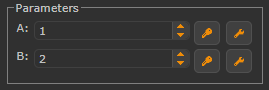
If the keyframe symbol is pressed at a certain time step (which can be selected with the time control panel) the current value of the public parameter is associated with that keyframe time and the node's value is restored automatically if the particular keyframe time is reached again. By setting multiple keyframes at different points in time interesting keyframe animations can be created. The small button with the wrench symbol next to the keyframe button opens a dialog that allows editing the keyframe animation by changing the interpolation type or by deleting unwanted keyframes. The keyframe information is stored together with the graph and is therefore always automatically restored if the graph is loaded. Time steps (also called ticks) are freely configurable. Their duration as well as start and end can be edited by pressing the small button with the clock symbol in the time control panel.